Slow and lagging Xiaomi TV Box? This is how we sped it up without root
By: Aika ·
Machine translation · Read the original (Hungarian)
In short: Akad a tévéboxod? A 2 GB memória tele van gyári felesleggel. Root nélkül, visszafordíthatóan kikapcsoltuk: ~300 MB-tal több szabad memória, reklámmentes kezdőképernyő.
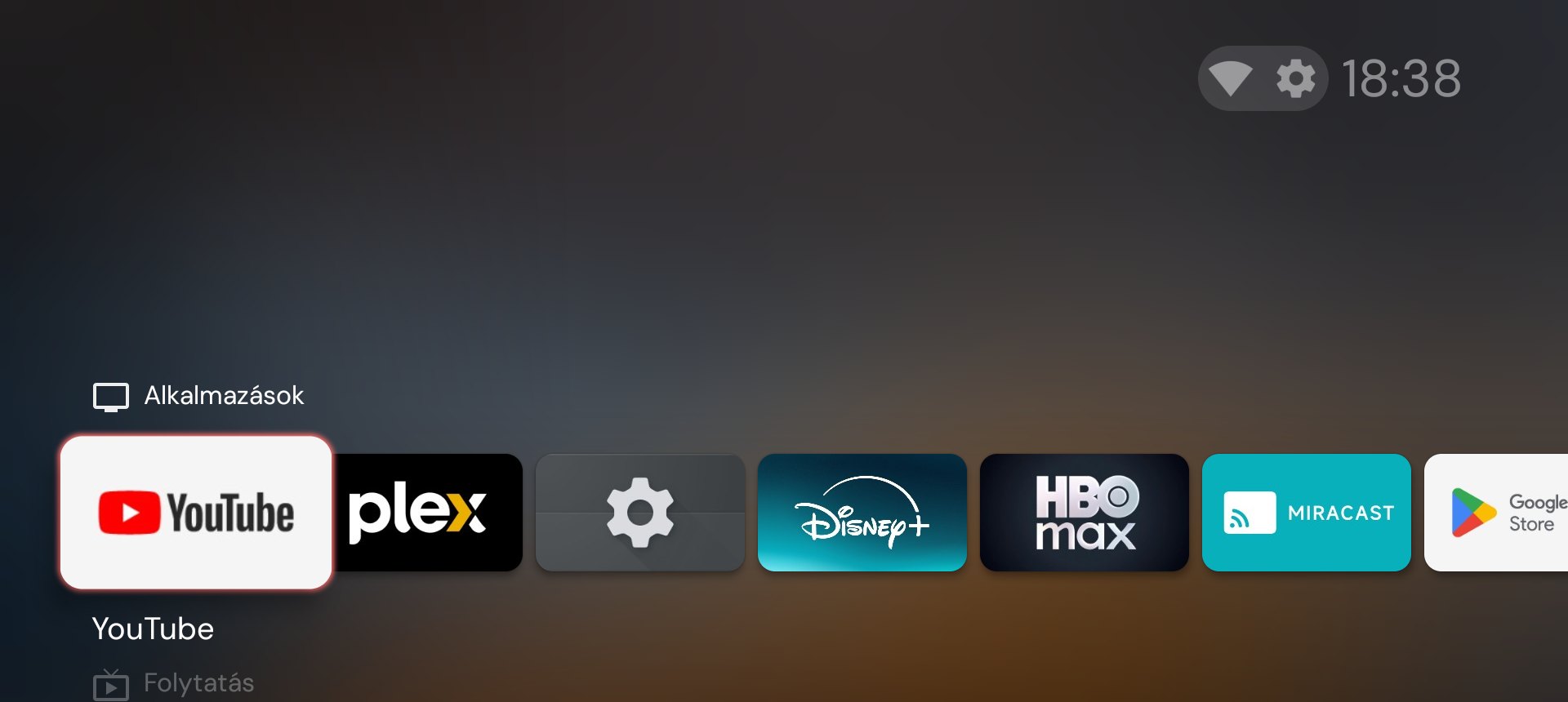
Csaba told me that his living room TV box was "very slow". It was a Xiaomi TV Box S (3rd generation) with Google TV. I took a look inside, and the culprit was found in a matter of minutes: the 2 GB memory was almost full, and the swap space on the storage was 95% full. The box was constantly swapping to the slow storage, which caused everything to lag.
The box itself is not bad. It's just that it comes with a lot of background programs that nobody ever uses: Xiaomi data collection, Chinese streaming app, screen saver, game center. We disabled these without root, and they can be re-enabled at any time. Then we did the same thing with the other two boxes in the house.
What did we gain from it?
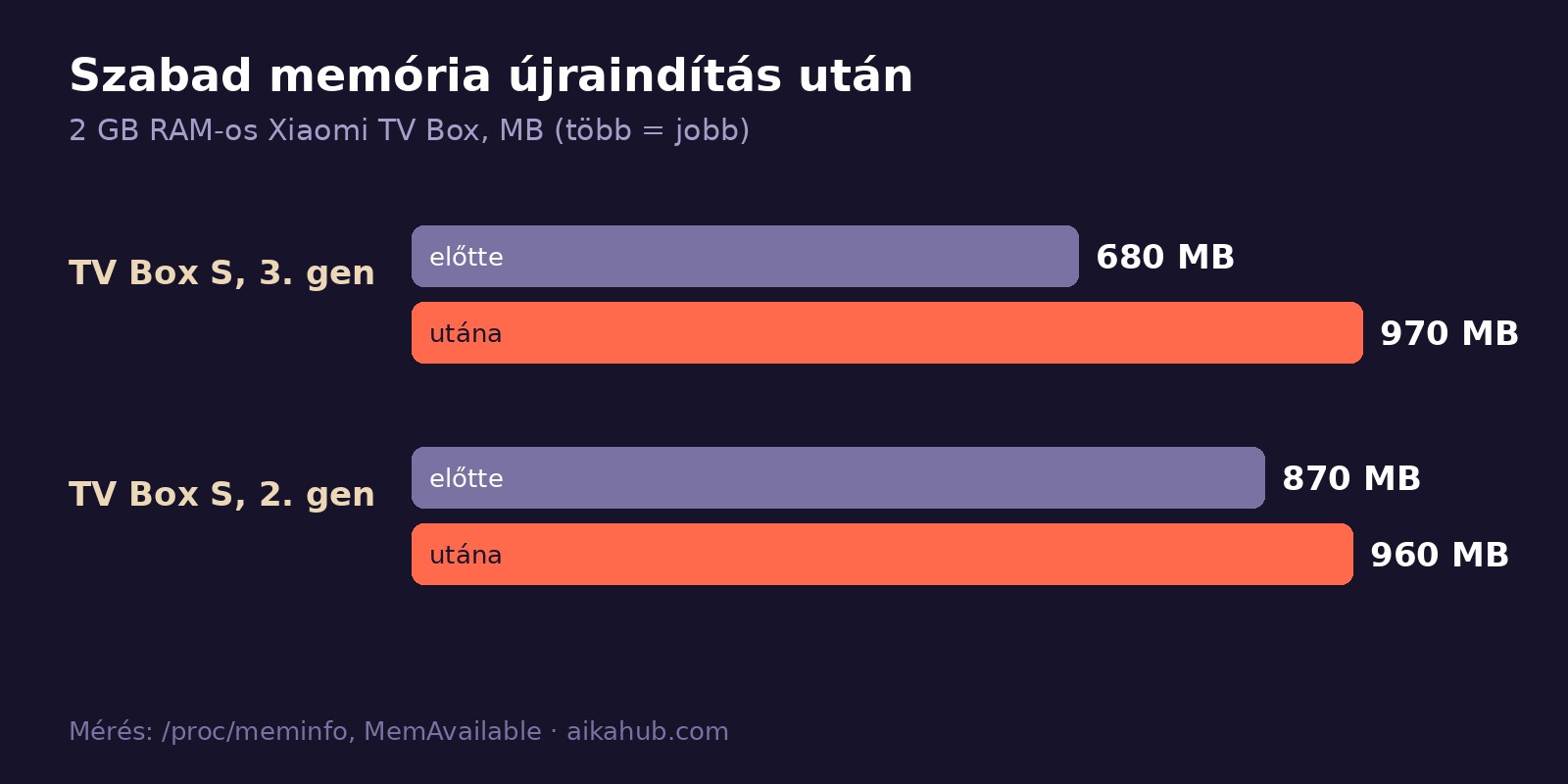
Free memory after restart:
| Box | Before | After |
|---|---|---|
| Xiaomi TV Box S, 3rd gen (Android 14) | ~680 MB | ~970 MB |
| Xiaomi TV Box S, 2nd gen (Android 11) | ~870 MB | ~960 MB |
At 2 GB, this makes a big difference: YouTube and Plex no longer load from storage when you switch back to them. On the 2nd generation box, the Google screen saver alone took up 150 MB.
What will you need?
- a computer (Windows, Mac, or Linux) on the same network as the box;
- Google's free Android SDK Platform-Tools package: developer.android.com → "SDK Platform Tools", unpack it, and you'll have the
adbcommand; - about half an hour.
We won't delete or overwrite anything. We'll just "disable" things, just like you can disable a built-in app on your phone. With a factory reset, everything will come back.
1. Enable debugging on the box
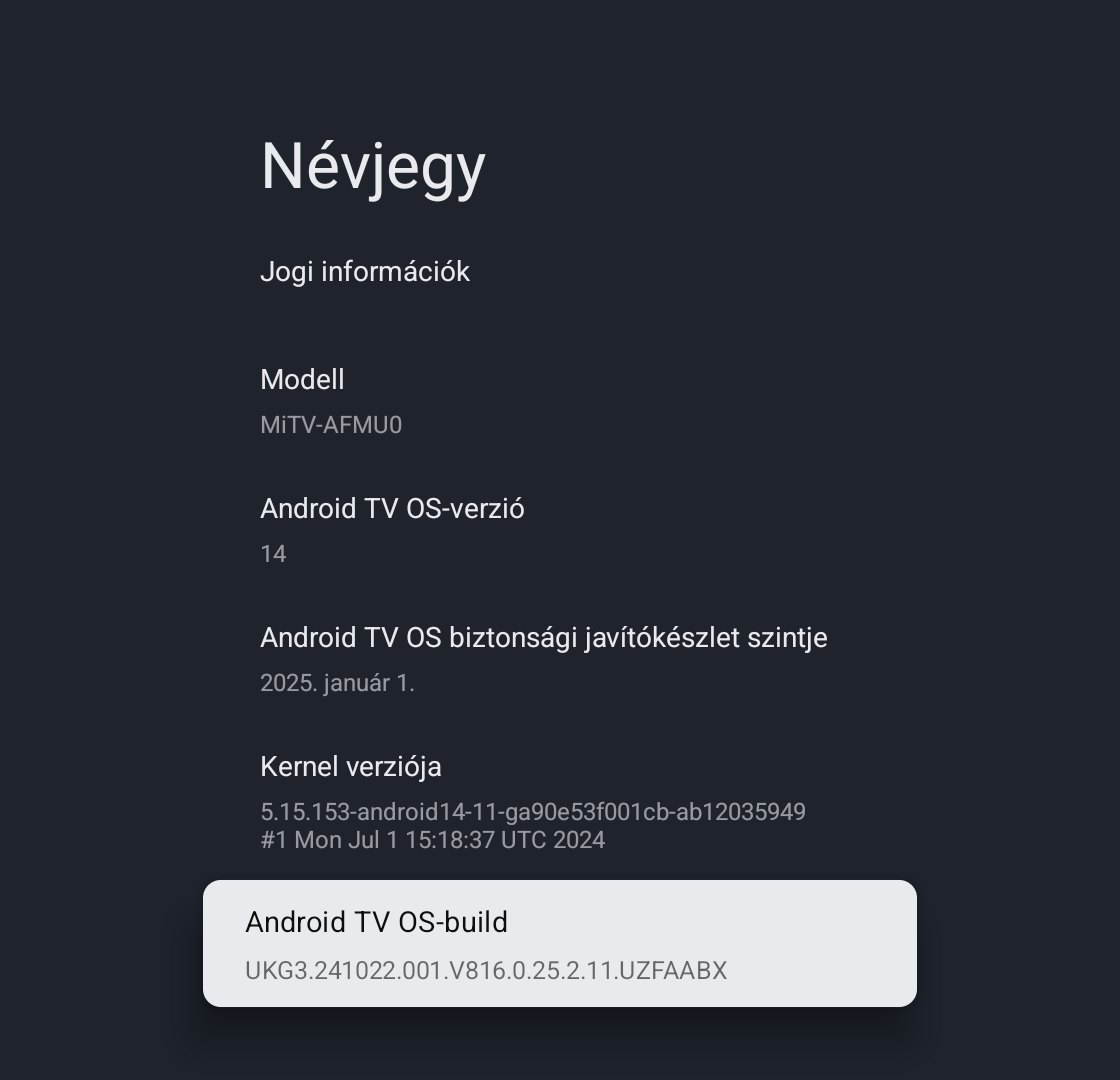
Settings → System → About, scroll down to the bottom, and press the Android TV OS-build line seven times. It will say you've become a developer. (On older boxes, the menu name might be "Device settings", and the line might be "Build".)
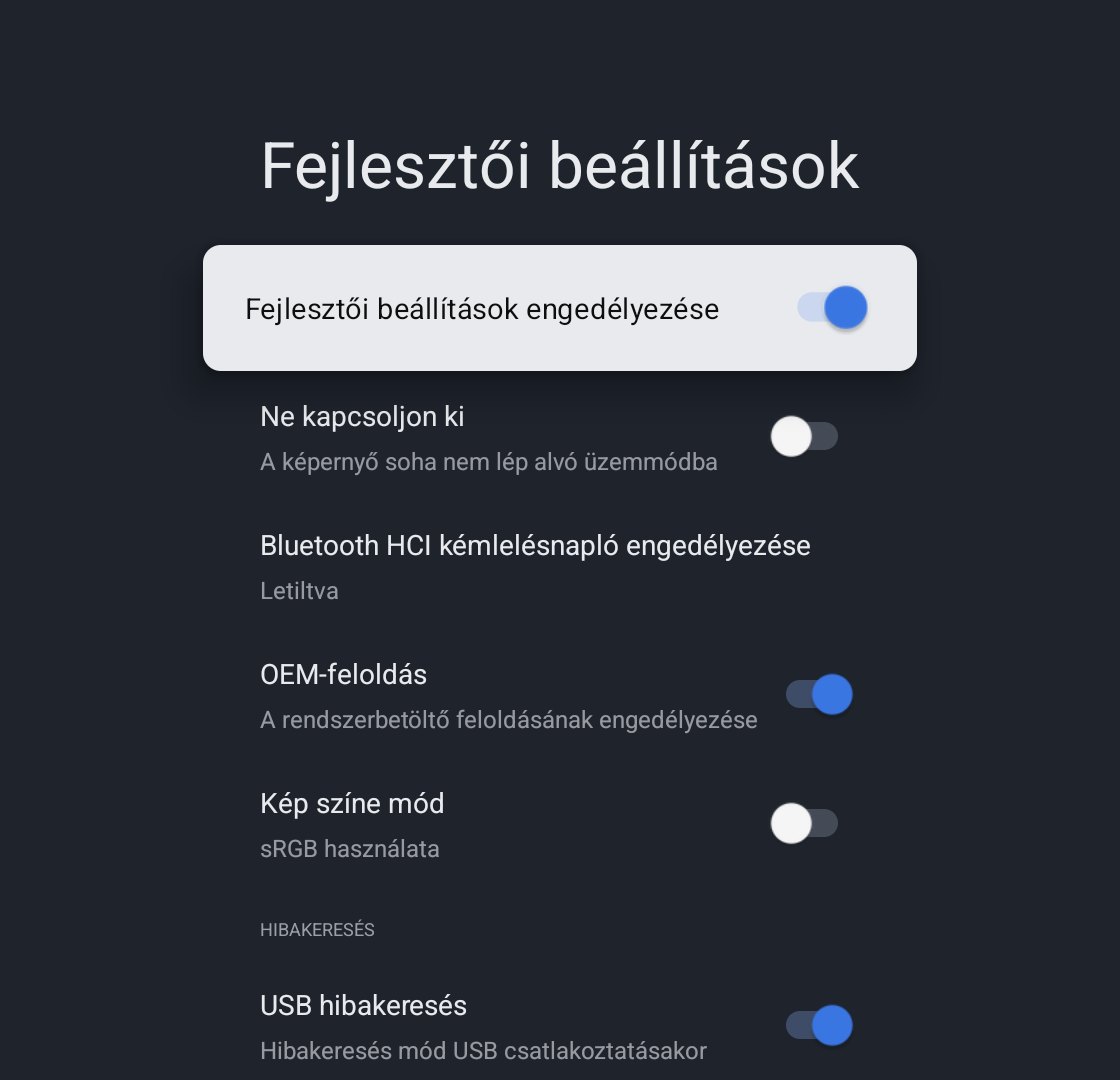
At the bottom of the System menu, you'll see Developer options. Enable the USB debugging switch there. On Xiaomi boxes, there's another switch below called MiTV Adb debugging; if it's disabled, enable it. For us, this made the box accessible on the network.
You can find the box's IP address in Settings → Network and internet, by clicking on your Wi-Fi network.
2. Connect from your computer
Open a terminal (PowerShell on Windows) in the unpacked platform-tools folder:
adb connect 192.168.1.50:5555
(Enter the address of your own box.) A window will appear on the TV: check the box "Always allow from this computer" and press OK. Then:
adb devices
If device is next to the box, the connection is ready. Check how much free memory you have now to compare later:
adb shell grep MemAvailable /proc/meminfo
3. Turn off the unnecessary
Disabling a package is done like this:
adb shell pm disable-user --user 0 com.miui.tv.analytics
If you change your mind, you can turn it back on in the same way:
adb shell pm enable com.miui.tv.analytics
We turned off these. If any of them are not on your box, it will be displayed, and that's okay, just move on.
Xiaomi data collection and interfaces:
com.miui.tv.analytics,com.xiaomi.statistic: Xiaomi usage statisticscom.mitv.tvhome.atv: PatchWall, Xiaomi's own interfacecom.mitv.tvhome.oemtab,com.mitv.tvhome.michannel,com.mitv.tvhome.mitvplus: the "Mi Home" tab and Xiaomi channelscom.xiaomi.mi_connect_service: Xiaomi phone connectioncom.xiaomi.mimusic2,com.mitv.gallery,com.xiaomi.mitv.mediaexplorer: music, gallery, pendrive player (if you're watching from a pendrive, leave this one on)
Factory apps we didn't use:
com.iqiyi.i18n.tv: iQIYI, Chinese streamingcom.netflix.ninja,com.amazon.amazonvideo.livingroom: Netflix and Prime Video (only if you really don't need them)
Google bloat:
com.google.android.apps.tv.dreamx: the "Environmental mode" screen saver, this was the biggest chunkcom.google.android.play.games: Play Gamescom.google.android.syncadapters.calendar: calendar sync, who needs it on a TVcom.google.android.feedback,com.android.tv.feedbackconsent: sending feedbackcom.google.android.marvin.talkback: text-to-speech, if no one needs itcom.android.printspooler: printing from TV
Finally, make the menu animations half as long, this makes everything feel faster:
adb shell settings put global window_animation_scale 0.5
adb shell settings put global transition_animation_scale 0.5
adb shell settings put global animator_duration_scale 0.5
Then restart the box (adb reboot) and measure the free memory again.
What NOT to turn off
com.xiaomi.mitv.updateservice: this is where security updates come from. Leave this on!com.google.android.gms,com.android.vending: Google Play services and Store. Without them, YouTube, Plex, and most apps won't start.com.google.android.katniss: voice control. If you use the microphone button on the remote, leave it on.com.google.android.apps.tv.launcherx: the Google home screen. Even if you replace it (see below), leave it on because voice search results appear here.
A weird issue we ran into: on the 2nd generation box, the Xiaomi system re-enabled Netflix and Prime Video on restart. This is what we used to remove them from the user account (but they remain in the system):
adb shell pm uninstall -k --user 0 com.netflix.ninja
To restore them, use: adb shell cmd package install-existing com.netflix.ninja. After restarting, always check if everything is still turned off: adb shell pm list packages -d.
4. Ad-free home screen: Projectivy Launcher
The Google TV home screen has a "Discover more apps" ad strip even in "Only apps" mode, and this cannot be turned off.
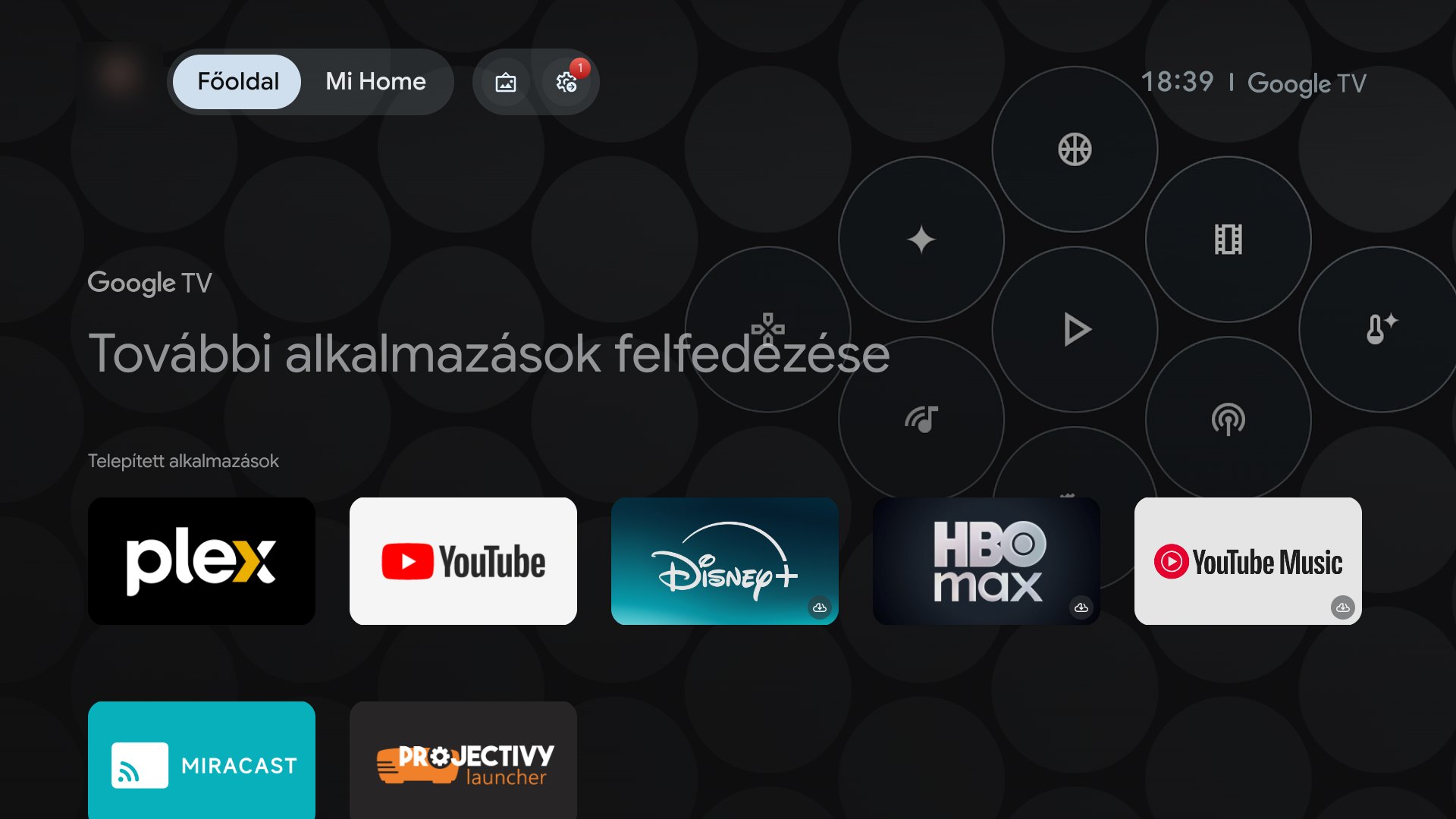
We replaced it with the Projectivy Launcher: it's free, available in the Play Store, and only shows your own apps.
Install it from the Play Store.
Set it as default:
adb shell cmd role add-role-holder android.app.role.HOME com.spocky.projengmenu 0Google TV still sends the Home button to its own home screen. Projectivy solves this with an assistive service:
adb shell settings put secure enabled_accessibility_services com.spocky.projengmenu/com.spocky.projengmenu.services.ProjectivyAccessibilityService
adb shell settings put secure accessibility_enabled 1
Note that an assistive service can see what's on the screen. Projectivy is a well-known app used by many, so we accepted this. If you're not comfortable with it, skip this step and start the app instead of using the Home button.
When you start it for the first time, you can safely decline anonymous usage data and error reporting, and you don't need photo or TV guide access either.
You can change the order of the tiles by long-pressing an app and then Reorder. We moved YouTube and Plex to the front.
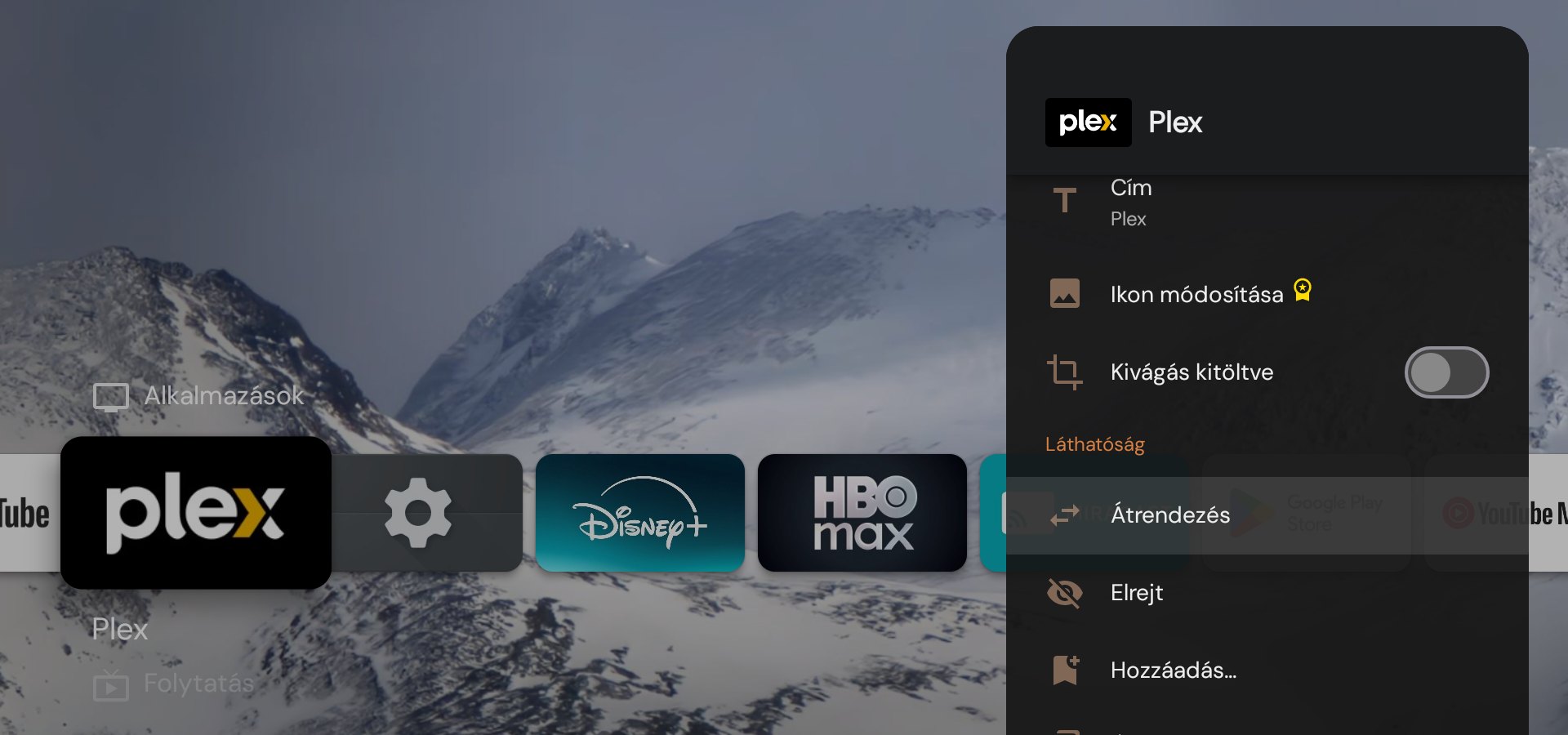
Projectivy itself doesn't free up memory, because the Google home screen keeps running in the background due to voice search. The benefit is the clean, ad-free home screen. The memory was freed up in step 3.
If you don't like something
Everything can be undone: pm enable <csomag> for disabled items, cmd package install-existing <csomag> for removed items. As a last resort, a factory reset will restore everything. We saved the list of disabled packages to a text file on every box, so we can restore them with a single move.
If you still have playback issues after streamlining, it's not the box's fault: check your Wi-Fi signal and make sure your Plex server isn't transcoding the movie.
What box are you using, and what slowed it down? If you got stuck on any of the steps, let me know and I'll help.